BlogWalkthrough
NetSuite month-end close: Steps, Period Close Checklist, and bank reconciliation
27 min read
Key takeaways
- A NetSuite month-end close runs through the Period Close Checklist at Setup > Accounting > Manage G/L > Manage Accounting Periods, where you lock A/R, A/P, and payroll, run period-end tasks in a fixed order, and then click Close Period.
- Bank and credit card accounts reconcile on two pages, Match Bank Data and Reconcile Account Statement, and NetSuite's original reconciliation feature is no longer supported as of NetSuite 2021.1.
- Reopening a closed period needs the Manage Accounting Periods permission and a written justification, and it reopens every later closed period, so you may need to rerun revaluation and other tasks in each one.
- AI can flag exceptions during the month through Intelligent Close Manager inside NetSuite, and AI tools connected from outside can draft entries and explanations, but locking, review, and closing stay with your team.
A NetSuite month-end close means locking A/R, A/P, and payroll on the Period Close Checklist, reconciling bank and credit card accounts, posting accruals, amortization, allocations, revaluation, and eliminations, reviewing the trial balance, and then closing the period. Running these steps in NetSuite's order gives you accurate statements, catches unbilled orders and FX gaps before you lock, and keeps reopened periods rare. This guide gives you the close in order, with the exact NetSuite page for each step. It also covers the checklist, period end journals, reopening, common close problems, AI and add-ons, and a printable checklist. For the close in any system, see the month-end close process.
Every NetSuite page, task, and permission name below comes from Oracle's NetSuite Help Center as read in November 2026. Each section names the Help Center page it draws on.
NetSuite month-end close steps in order
The NetSuite close runs in 10 steps: lock the subledgers, reconcile cash, post accruals and amortization, run allocations, lock all G/L posting, revalue foreign currency, consolidate and eliminate, review the trial balance, run reports, and close.
| # | Step | NetSuite page or task (as Oracle names it) | Who does it | What to check |
|---|---|---|---|---|
| 1 | Lock A/R, A/P, and payroll | Period Close Checklist: Lock A/R, Lock A/P, Lock Payroll (Payroll feature only) | AR lead, AP lead, and payroll lead; controller approves | Open sales orders are invoiced through Transactions > Sales > Invoice Sales Orders (Administrator) with the right Posting Period. Bills for received purchase orders are entered. |
| 2 | Reconcile bank and credit card accounts | Transactions > Bank > Match Bank Data, then Transactions > Bank > Reconcile Account Statement | Staff accountant; senior accountant reviews | Every imported bank line is matched or excluded. User-cleared items have support. The Ending Statement Balance agrees with the bank statement. |
| 3 | Post accruals and amortization | Transactions > Financial > Make Journal Entries (with a Reversal Date); Transactions > Financial > Create Amortization Journal Entries (Amortization feature) | GL accountant; controller reviews | Each reversing accrual has a Reversal Date in the next period. Every amortization schedule due this period has a posted journal. |
| 4 | Run allocations | Transactions > Financial > Create Allocation Schedules > List, then Create Journal Entry (Expense Allocation feature) | GL accountant or FP&A | Allocation weights are current. Source accounts clear as expected. |
| 5 | Lock all G/L posting | Period Close Checklist: Lock All; in OneWorld, then Create Intercompany Adjustments (if automated intercompany expense adjustments are on) | Controller | Only people with Override Period Restrictions can post from here. All subledger and journal activity for the month is in. |
| 6 | Revalue open foreign currency balances | Period Close Checklist: Revalue Open Foreign Currency Balances (or Transactions > Financial > Revalue Open Currency Balances) | GL or consolidation accountant | Period-end exchange rates are loaded. Each subsidiary is run. The Results subtab shows the expected gain or loss. |
| 7 | Consolidate and eliminate (OneWorld) | Period Close Checklist: Calculate Consolidated Exchange Rates, then Eliminate Intercompany Transactions | Consolidation accountant | Intercompany balances agree before rates are calculated. Elimination status shows Complete. |
| 8 | Review the trial balance and flux | Reports > Financial > Trial Balance; Reports > Financial > Comparative Income Statement | Controller | Debits equal credits. Every balance sheet account ties to a reconciliation. Movements above threshold are explained. |
| 9 | Run financial reports | Reports > Financial > Income Statement; Reports > Financial > Balance Sheet | Controller; CFO reviews | Statements agree to the trial balance for each subsidiary and consolidated. |
| 10 | Close the period | Period Close Checklist: Create Period End Journals (if enabled), GL Audit Numbering (if enabled), then Close > Close Period | Controller | Every checklist task shows complete. The prior period is closed. |
The checklist enforces part of this order. According to Oracle's "Closing Tasks and Their Dependencies," revaluation can't start until Create Intercompany Adjustments is done, and that task follows Lock All. Post accruals and allocations before Lock All, or give the preparers Override Period Restrictions.
These 10 steps cover the tasks most accounts share. Complete any feature-specific tasks displayed in your NetSuite Period Close Checklist, such as the inventory reviews, Resolve Date/Period Mismatches, Review Custom GL Plug-ins Executions, Recognize Revenue, and Reclassify Revenue, in the order shown.
How does the NetSuite Period Close Checklist work?
The Period Close Checklist is the page where you lock, adjust, and close one accounting period, opened from the Checklist icon on Setup > Accounting > Manage G/L > Manage Accounting Periods. Tasks are listed in the order you should complete them, and features you've enabled add tasks.
Oracle's "Using the Period Close Checklist" lists the full task set. Your account shows only the tasks its features turn on.
| Checklist task | Appears when | Permission needed (beyond Manage Accounting Periods) |
|---|---|---|
| Lock A/R, Lock A/P, Lock Payroll, Lock All | Always (Lock Payroll needs the Payroll feature) | None listed |
| Resolve Date/Period Mismatches, Review Negative Inventory, Review Inventory Cost Accounting, Review Inventory Activity | Inventory feature is used (Review Inventory Activity in OneWorld) | None listed |
| Review Custom GL Plug-ins Executions | Custom GL Lines Plug-in is used | Review Custom GL Plug-ins Executions and Override Period Restrictions |
| Create Intercompany Adjustments | OneWorld with automated intercompany expense adjustments | Journal Entry and Override Period Restrictions |
| Revalue Open Foreign Currency Balances | Multiple currencies is enabled | Currency Revaluation at Create level and Override Period Restrictions |
| Recognize Revenue, Reclassify Revenue | Advanced Revenue Management (Essentials) is enabled | None listed |
| Calculate Consolidated Exchange Rates | OneWorld with multiple currencies | Currency (Full) and Override Period Restrictions |
| Eliminate Intercompany Transactions | OneWorld with intercompany elimination | None listed |
| Create Period End Journals | Period End Journal Entries feature is enabled (OneWorld only) | None listed |
| GL Audit Numbering | GL Audit Numbering feature is enabled | None listed |
| Close | Always | None listed |
To complete every task, your role needs Manage Accounting Periods at Edit or Full level plus Override Period Restrictions. Three rules shape the order you work in:
- Prior periods firstIf an earlier period is still open, you can lock this one, but you can't complete other tasks or close it
- Status per taskTask pages have Mark Task Complete and Mark Task In Progress (lock tasks use Submit), and the Modified By column shows who changed a task's status
- Quick CloseWith the Period Closing Management permission and the Allow Quick Close of Accounting Periods preference, you can close several periods in one click. Oracle's "Accounting Period Close" warns that Quick Close only marks tasks complete and doesn't run them, so use it only when no closing tasks are needed.
What is the difference between locking and closing a period in NetSuite?
Locking stops ordinary users from posting to the period, but users with Override Period Restrictions can still post, while closing stops everyone from making general ledger changes until the period is reopened.
| Aspect | Locked period | Closed period |
|---|---|---|
| Who can post G/L-impacting changes | Only users with Override Period Restrictions | No one |
| How to allow changes | Unlock the module (Lock A/R, Lock A/P, Lock Payroll, or Lock All, then Unlock) | Reopen the period |
| Non-G/L edits | Allowed if the period has Allow Non-G/L Changes checked and the user has the Allow Non G/L Changes permission | Same rule applies |
| Non-posting transactions (sales orders, purchase orders, return authorizations) | Not restricted | Not restricted |
| What it covers | G/L-impacting changes to posting transactions, including journals, CSV imports, web services, SuiteScript, and ODBC | All posting transactions for the period |
Oracle's "Locking and Unlocking Accounting Periods" adds one detail: unlocking A/R also unlocks All G/L Transactions. In OneWorld, you lock and unlock by subsidiary. For when to lock and who should hold override rights, see lock accounting period.
How to do bank reconciliation in NetSuite
You do bank reconciliation in NetSuite by matching imported bank lines to NetSuite transactions on Match Bank Data, submitting the matches, and then reconciling the statement on Reconcile Account Statement. Credit card accounts use the same two pages.
Oracle's "Reconciling Bank and Credit Card Statements" sets out five steps:
- Import bank or credit card dataUse the Bank Feeds SuiteApp, the Auto Bank Statement Import SuiteApp, or a file import. As of NetSuite 2021.1, this step is optional, because you can mark transactions as cleared without a bank line.
- Generate customer paymentsIf you use Automated Cash Application, it creates and clears customer payments from imported bank lines before you match.
- Match or clear the restOn Transactions > Bank > Match Bank Data, select bank lines and NetSuite transactions until the Difference field is zero, then click Match. Mark a transaction with no bank line as cleared, exclude bank lines that don't belong, or create a missing transaction from the page.
- SubmitSubmit the matched and user-cleared transactions.
- ReconcileOn Transactions > Bank > Reconcile Account Statement, select the account, enter the Statement End Date and Ending Statement Balance, include the cleared transactions, and click Reconcile.
Three behaviors matter at month-end, according to Oracle's "Reconciling Transactions." The Statement End Date becomes the Close Date and can't be changed. NetSuite lets you reconcile even with an amount difference, so your reviewer has to check that the balances agree. If someone later changes a reconciled transaction's amount, it becomes unreconciled.
An account appears on these pages only if its record has Use Match Bank Data and Reconcile Account Statement Pages checked. NetSuite checks it automatically for new accounts. The original reconciliation feature is no longer supported as of NetSuite 2021.1. For the general method and a full template, see bank reconciliation.
Example
The October 31 bank statement for the operating account shows $482,600. NetSuite's general ledger shows $468,350.
| Item | Bank side | Book side | NetSuite action |
|---|---|---|---|
| Balance on October 31 | $482,600 | $468,350 | |
| Deposit in transit, recorded October 31, cleared November 1 | +$12,500 | Leave unmatched; it clears on November's statement | |
| Outstanding checks | −$27,950 | Leave unmatched | |
| Bank fee on the statement, not yet in NetSuite | −$1,200 | Create the transaction from Match Bank Data and match it | |
| Adjusted balance | $467,150 | $467,150 | Reconcile with Ending Statement Balance $482,600 |
The bank side is $482,600 + $12,500 − $27,950 = $467,150. The book side is $468,350 − $1,200 = $467,150. They agree, so the account is reconciled.
How to revalue foreign currency balances in NetSuite at month-end
You revalue foreign currency balances by running the Revalue Open Foreign Currency Balances task on the Period Close Checklist, which posts unrealized gains and losses on open transactions using exchange rates as of the period's last day.
Oracle's "Generating Revaluations" says revaluation covers open customer and vendor transactions, foreign-currency-denominated accounts, and other non-equity balance sheet accounts. Open receivables and payables post in a separate revaluation transaction from other accounts. In OneWorld, you run it per subsidiary.
Timing decides whether the numbers are right:
- Lock firstOracle's "Revaluation of Open Currency Balances" says to lock the period before you generate revaluations
- Load rates firstRevaluations use exchange rates as of the period's last day. If you run it from the menu before period end, NetSuite uses the current date's rate.
- Expect a reversalA Reversal of Unrealized Gain/Loss posts on the first day of the next period, according to Oracle's "Currency Revaluation Transactions"
- Rerun after reopeningIf you reopen a period, post changes, and rerun its revaluation after later periods are closed, you must rerun revaluation for every later period
Example
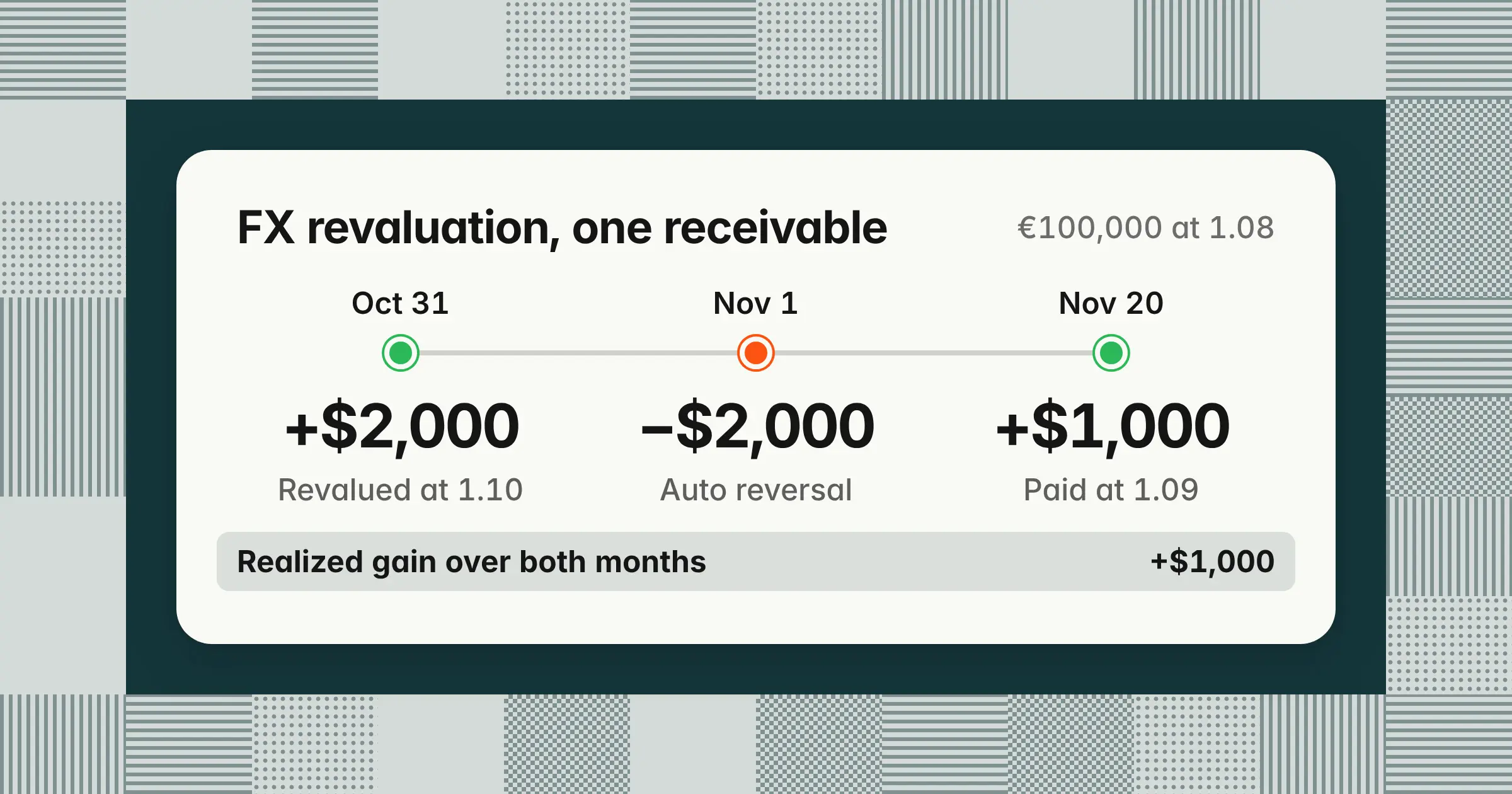
You invoice a German customer €100,000 on October 10 at 1.08 dollars per euro, so the receivable is $108,000. On October 31, the rate is 1.10, so the receivable is worth $110,000.
| Date | Transaction | Gain or loss |
|---|---|---|
| October 31 | Unrealized gain: $110,000 − $108,000 | +$2,000 |
| November 1 | Reversal of unrealized gain | −$2,000 |
| November 20 | Customer pays at 1.09: realized gain of $109,000 − $108,000 | +$1,000 |
October shows a $2,000 gain. November nets to a $1,000 loss (−$2,000 + $1,000). Over both months, the total is the $1,000 realized gain.
How to post accruals and amortization in NetSuite
You post accruals as journal entries with a Reversal Date at Transactions > Financial > Make Journal Entries, and amortization by generating journals from schedules at Transactions > Financial > Create Amortization Journal Entries.
Oracle's "Reversing Journal Entries" describes two options for the reversal. Check Defer Entry to create the reversal as a memorized transaction on the Reversal Date. Clear it to enter the reversal immediately, dated on the Reversal Date. The reversal uses the original entry's exchange rate and can't be edited directly.
Example
A consulting firm finished $45,000 of October work but hasn't invoiced. On October 31, you debit professional fees $45,000 and credit accrued expenses $45,000, with a Reversal Date of November 1. When the $45,000 bill posts in November, the reversal offsets it, so November shows no expense from this work. For more accrual examples, see accrued expenses.
| Account | Debit | Credit |
|---|---|---|
| Professional fees | 45,000 | |
| Accrued expenses | 45,000 |
Amortization schedules spread a deferred expense over future periods. According to Oracle's "Amortization Journal Entries," nothing hits the general ledger until you generate the journals. On the Create Amortization Journal Entries page, select the posting period, choose whether to approve the journal on save, and click Create Journal Entries. The page can create up to 10,000 entries at once.
Example
You pay $120,000 on October 1 for a 12-month software subscription and attach a 12-month amortization schedule to the bill. Each month, the generated journal debits software expense $10,000 ($120,000 ÷ 12) and credits the deferred expense account. After October, the deferred expense balance should be $110,000. For how to build and reconcile the schedule, see prepaid expenses.
| Account | Debit | Credit |
|---|---|---|
| Software expense | 10,000 | |
| Deferred expense | 10,000 |
Amortization is part of the NetSuite Advanced Financials module, according to Oracle NetSuite's Advanced Financials data sheet (read November 2026). Your account needs that module to use it.
How to run allocations in NetSuite
You run allocations by creating journal entries from due allocation schedules at Transactions > Financial > Create Allocation Schedules > List, opening each schedule, and clicking Create Journal Entry.
Oracle's "Creating Expense Allocation Schedules" says each schedule moves a balance from source accounts to destination accounts, departments, classes, or locations by weight. Without a credit account, the source balance moves out to zero. With one, NetSuite posts an offsetting credit and the balance stays in the source account. Dynamic allocation can pull weights from a statistical account, such as headcount.
Example
October rent of $60,000 sits in the corporate department. Your schedule allocates it by headcount of 50 in sales, 30 in engineering, and 20 in G&A. The journal posts $30,000, $18,000, and $12,000, which total $60,000.
| Department | Headcount | Allocated |
|---|---|---|
| Sales | 50 | $30,000 |
| Engineering | 30 | $18,000 |
| G&A | 20 | $12,000 |
| Total | 100 | $60,000 |
Expense allocation is also part of Advanced Financials, according to the same data sheet. Your role needs Edit or Full level of the Create Allocation Schedules permission.
How do intercompany and eliminations work in NetSuite OneWorld?
In NetSuite OneWorld, you create intercompany adjustments, revalue, calculate consolidated exchange rates, and then eliminate intercompany transactions, all from the Period Close Checklist and in that order. Elimination runs only from the checklist.
Four checks come from Oracle's "Running Intercompany Elimination" and "Using the Period Close Checklist":
- Finish everything else firstComplete the other closing tasks before elimination, because revaluation and consolidated rates set the gains and losses that post to the Cumulative Translation Adjustment - Elimination account
- Treat the rates as finalAfter you mark Calculate Consolidated Exchange Rates complete, you can't change that period's consolidated rates
- Wait for CompleteDon't close the period while elimination is running. Wait until the Status subtab shows Complete.
- Clear the currency deltaAmounts not eliminated because of a currency delta need a manual journal entry
Intercompany elimination is part of the Automated Intercompany Management feature. According to Oracle's "Financial Reports," that feature also adds the Intercompany Reconciliation Report. For how to match and settle balances between entities, see intercompany accounting.
How to review the trial balance and flux in NetSuite
You review the trial balance at Reports > Financial > Trial Balance and run flux on Reports > Financial > Comparative Income Statement, which compares income and expenses across two or more periods.
Oracle's "Trial Balance Report" says the report shows every active account's balance as of a date, in debit and credit columns. In OneWorld, the Subsidiary Context filter picks one subsidiary or a consolidated parent, and a Cumulative Translation Adjustment line may appear. Retained earnings on the report equal cumulative net income plus anything posted directly to retained earnings. Every balance sheet account on it should tie to a signed-off reconciliation. For the method, see balance sheet reconciliation.
Example
Your flux policy requires an explanation for any change over $25,000 and 10% from the prior month. Treat those thresholds as a review trigger, not a materiality line, so a smaller movement you didn't expect still gets a look.
| Account | September | October | Change | Change % | Explain? |
|---|---|---|---|---|---|
| Software and hosting | $356,000 | $412,000 | +$56,000 | +15.7% | Yes |
| Professional fees | $50,000 | $95,000 | +$45,000 | +90.0% | Yes: the $45,000 consulting accrual |
| Salaries | $1,195,000 | $1,210,000 | +$15,000 | +1.3% | No |
For thresholds and how to write explanations, see flux analysis.
What are period end journals in NetSuite?
Period end journals are a NetSuite OneWorld feature that posts consolidation and income statement closing entries to the general ledger, created by the Create Period End Journals task on the checklist. By default, NetSuite calculates these amounts without posting them.
Oracle's "Period End Journal Entries" says the feature is for subsidiaries with statutory requirements to record these entries in the general ledger. It creates four journal types:
- Income statement closing journalMoves net income to retained earnings in the last period of the subsidiary's fiscal year
- Consolidation journalRecords the change since the start of the period in a child subsidiary consolidated into its parent, including the cumulative translation adjustment
- Balance sheet closing and opening journalsZero out balance sheet accounts and post any balancing amount to the account you specify
- Historical balances journalPosts historical consolidated balances the first time you run the process for a subsidiary
Enable it at Setup > Company > Enable Features, Accounting subtab, then turn it on for each subsidiary. Oracle's "Enabling the Period End Journal Entries Feature" says it's available only in OneWorld. Period end journals skip approvals and post when created. If you add or edit transactions after creating them, rerun the task. The Post Closing Trial Balance report requires this feature, and the post-closing trial balance guide explains what it should show. For how closing entries move revenue and expenses into retained earnings, see closing entries.
How to close a period in NetSuite
You close a period in NetSuite by completing every task on its Period Close Checklist, then clicking the Go To Task icon for Close and clicking Close Period. The prior period must already be closed.
Before you click Close Period, confirm three things:
- Every task shows completeIncluding Create Period End Journals and GL Audit Numbering if your account has them
- Reconciliations are signed offOracle's "Accounting Period Close" says closing should come after account review and reconciliation
- Background jobs have finishedElimination shows Complete, and Create Period End Journals shows results with no errors
With Multi-Book Accounting, each book closes on its own. Select the book in the Filters section of Manage Accounting Periods first.
How does year-end close work in NetSuite?
NetSuite closes the fiscal year automatically once every period in the year is closed, and by default it doesn't post a closing entry to retained earnings. Oracle's "Year-End Closing" calls this Automatic Close and strongly recommends it over Manual Close.
Under Automatic Close, the balance sheet shows prior years' net income in retained earnings and current-year income in a net income account. Oracle's year-end steps repeat the monthly close for every period in the year, with one addition: finish quarterly and yearly payroll tasks if you run payroll in NetSuite. If your GL Audit Numbering method is Quarter or Year, its checklist task appears in the period that method sets, according to "Closing Tasks and Their Dependencies." For the full year-end task list, see the year-end close checklist.
How to reopen a closed period in NetSuite
You reopen a closed period from its Period Close Checklist by opening the Close task, clicking Reopen Period, entering a justification, and confirming the warning. You need the Manage Accounting Periods permission.
Oracle's "Reopening a Closed Period" gives six steps:
- Go to Setup > Accounting > Manage G/L > Manage Accounting Periods
- Click the Checklist icon for the period
- Click the arrow icon for the Close task
- On the Close Accounting Period page, click Reopen Period
- Enter a Justification, click Reopen Period again, and review the warning
- Click OK
Reopening has knock-on effects. Every later closed period reopens too, and you may need to redo checklist tasks in each one. NetSuite saves the justification in a user note.
Do you need to reopen the period?
Not always, because a locked or closed period still allows some changes without reopening.
| What you need to change | Do you need to reopen? | Permission |
|---|---|---|
| A G/L-impacting change in a locked period | No | Override Period Restrictions |
| A non-G/L field, such as a memo, in a locked or closed period | No, if the period has Allow Non-G/L Changes checked | Allow Non G/L Changes |
| A sales order, purchase order, or other non-posting transaction | No | None |
| A G/L-impacting change in a closed period | Yes | Manage Accounting Periods to reopen |
Common NetSuite month-end close problems
Common NetSuite close problems come from activity that isn't posted yet, locks that block integrations, and FX tasks run out of order. Each one below has a fix you can apply before you close.
| Problem | Why it happens in NetSuite | How to fix it |
|---|---|---|
| Unbilled sales orders | Sales orders are non-posting, so locks don't flag them | Invoice them before Lock A/R with Invoice Sales Orders (Administrator), and set the Posting Period |
| Received but unbilled purchase orders | Item receipts post to the Accrued Purchases account until the bill arrives (Oracle, "Accounting for Received Purchase Orders") | Review the Accrued Purchases balance and chase missing bills before Lock A/P |
| Journals waiting for approval | A transaction that needs approval stays non-posting until it's approved | Clear the approval queue before Lock All |
| Integration or CSV imports fail after locking | Locks apply to CSV imports, web services, SuiteScript, and ODBC | Agree a cutoff with integration owners, or post through a role with Override Period Restrictions |
| Wrong revaluation amounts | Revaluation run from the menu before period end uses the current date's rate | Run it from the checklist after period-end rates are loaded |
| Revaluation wrong in later months | A period was reopened and revalued after later periods closed | Rerun revaluation for every later period |
| Consolidated rates can't be fixed | Rates lock once Calculate Consolidated Exchange Rates is marked complete | Confirm rates and intercompany balances before marking the task complete |
| Can't close the period | The prior period is still open | Close periods in order, oldest first |
| A reconciliation reopens | Someone changed a reconciled transaction's amount | Reconcile that statement period again |
What is NetSuite Intelligent Close Manager?
Intelligent Close Manager is a NetSuite feature that adds a Home page portlet showing close tasks, transaction amounts, and exceptions, with AI-prioritized tasks and the ability to lock transaction types and periods. You enable it at Setup > Company > Enable Features.
Oracle's "Intelligent Close Manager Overview" describes how it works:
- System tasksNetSuite creates tasks when it finds qualifying close work. Oracle's example is 50 pending sales orders for one subsidiary appearing as an "Invoice sales orders" task with a count of 50.
- Custom tasksYou add your own as Close Manager task records
- Estimated ImpactShows amounts in the subsidiary's base currency
- RefreshSystem tasks and KPIs refresh hourly, while custom tasks appear immediately
- ScopeShows the primary accounting book only
Exception Management, the part that uses AI to flag unusual activity, isn't available to every customer yet. Oracle's "Exception Management Overview" says it depends on sufficient data volume and model training readiness, learns from your last 18 months of transaction activity for best results, and may be limited in new or test accounts. If you can't access it, contact your NetSuite account manager.
Oracle's "Enabling the Intelligent Close Manager Feature" gives the setup. Go to Setup > Company > Enable Features, open the Accounting subtab, and check Intelligent Close Manager under Advanced Features. Neither Oracle help page states license requirements. NetSuite's Financial Close Management product page (read November 2026) says its close management capabilities are included with the NetSuite platform license, but the Intelligent Close Manager page lists no pricing, so confirm availability with your account team. Rand Group's NetSuite 2026.1 release notes (February 12, 2026) say the feature was introduced in that release.
Does NetSuite support a continuous or zero-day close?
NetSuite supports a continuous close in the sense of doing close work during the month, but each accounting period still closes through its Period Close Checklist. NetSuite's Intelligent Close Manager page says the feature makes it easier to implement a continuous or "rolling" close, and its Financial Close Management page lists continuous close management among its features (both read November 2026).
In practice, a continuous close in NetSuite means moving work out of the first days of the next month:
- Reconcile cash weeklyRun Match Bank Data and Reconcile Account Statement each week, so month-end covers only the last few days of activity
- Clear system tasks as they appearWork Intelligent Close Manager tasks when they show up instead of on day 1
- Post schedule-driven journals earlyAmortization amounts come from the schedule, so you can generate them as soon as the period's schedules are due
- Keep the true period-end steps for the closeLocking, revaluation at the period-end rate, consolidated rates, and elimination still happen after the month ends
Neither page describes a feature that closes the books on day zero. A one- or two-day close usually needs most reconciliations, accruals, and reviews done before month-end, so only cutoff, revaluation, and final review are left. For how teams get there, see faster month-end close and continuous close.
What is NetSuite close management and consolidation?
NetSuite close management and consolidation refers to the Close Management and Consolidation Sync SuiteApp, which connects NetSuite to Oracle Cloud EPM's Financial Consolidation and Close application. Oracle's page for the SuiteApp says it lets that application run NetSuite searches and use the results. Financial Consolidation and Close is a separate Oracle EPM application, and the SuiteApp's pages don't state license terms.
Can AI automate the NetSuite month-end close?
AI can do part of the NetSuite close today: it can flag exceptions, find missing transactions, propose bank matches, and draft entries and explanations. Locking, review, approval, and closing still need a person with the right NetSuite role.
AI reaches the NetSuite close in two ways:
- Inside NetSuiteIntelligent Close Manager and Exception Management. NetSuite's Intelligent Close Manager page (read November 2026) says Exception Management uses AI to continuously monitor journal entries, invoices, sales orders, purchase orders, and payments to detect exceptions. Oracle says Exception Management isn't available to all customers yet, so confirm your access first.
- From outsideThe NetSuite AI Connector Service uses the Model Context Protocol (MCP) to let AI clients such as Claude and ChatGPT connect to your account. Oracle's "Connect to the NetSuite AI Connector Service" covers setup through the MCP Standard Tools SuiteApp. Close software and AI agents can also connect through NetSuite's SuiteTalk web services.
| Close task | What AI can do | What stays with your team |
|---|---|---|
| Find missing activity | Surface pending sales orders, unbilled receipts, and unusual entries during the month | Decide whether each item is an error, and fix it |
| Bank reconciliation | Propose matches between bank lines and NetSuite transactions | Approve exclusions and sign off the reconciliation |
| Accruals and reconciliations | Draft accrual entries and balance sheet reconciliations with support attached | Review the support, approve, and post |
| Flux | Draft explanations for movements above your threshold | Confirm the business reason |
| Lock and close | Nothing by design; checklist tasks need Manage Accounting Periods, which an AI tool's role shouldn't have | The controller locks, reviews, and closes |
If you connect an AI tool, four controls come from Oracle's own pages:
- Use a limited roleOracle's connection page says to sign in to ChatGPT with the correct non-administrator role. The connector works under that role's NetSuite permissions, according to Oracle's guide to configuring and securing the AI Connector Service.
- Turn it off by permissionOracle's connection page says you can disable the Claude connector by removing the MCP Server Connection permission
- Keep your own audit trailThe integration record's Execution Log keeps AI Connector Service calls for 21 days in production and seven days in sandbox, so store workpapers and approvals somewhere that lasts through your audit
- Keep period locks in forceDon't give an AI tool's role Override Period Restrictions, so the locks described above apply to it like any other integration
For which close tasks AI does accurately today, see AI in month-end close. For using general AI assistants on the close, see ChatGPT, Claude, and Copilot for month-end close.
What tools work with NetSuite for month-end close and bank reconciliation?
NetSuite's own options cover bank data import and close tracking, and teams add close management, reconciliation, or AI agent software when they need workpapers, review sign-off, or multi-ERP coverage.
| Need | NetSuite option | What to check in any add-on |
|---|---|---|
| Bank data import | Bank Feeds SuiteApp (daily import from connected institutions; supported account types vary by country), Auto Bank Statement Import SuiteApp, Bank Statement Parsers SuiteApp | Which banks and file formats it supports |
| Close task tracking | Period Close Checklist; Intelligent Close Manager | Preparer and reviewer sign-off with an audit trail |
| Account reconciliation | Match Bank Data and Reconcile Account Statement for cash and credit cards | Balance sheet reconciliations beyond cash, with attached support |
| Consolidation | OneWorld elimination; Close Management and Consolidation Sync SuiteApp for Oracle EPM | Whether it reads NetSuite subsidiaries and posts back |
| Multi-ERP close | None | Whether it connects to NetSuite and your other ERP, such as SAP, through supported integrations |
For a comparison of close software, see best month-end close software.
Should you use a SuiteApp or a third-party close platform with NetSuite?
Use a SuiteApp if NetSuite is your only ERP and you want the work done on NetSuite records, and use a third-party platform if you run more than one ERP or want workpapers and sign-off kept outside NetSuite. SuiteApps install into your NetSuite account, while third-party platforms connect from outside through NetSuite's integration APIs.
| Aspect | SuiteApp | Third-party platform |
|---|---|---|
| Where it runs | Inside your NetSuite account | Outside NetSuite, connected through integration APIs |
| ERPs covered | Usually NetSuite only | NetSuite and other ERPs the vendor supports |
| Data | Works on NetSuite records directly | Syncs data out of NetSuite, so check how often it refreshes |
| What to ask | Does it cover reconciliations beyond cash? | Does it post back to NetSuite, or only read? |
The best NetSuite add-on for close and reconciliations is the one that fills your actual gaps. In a demo, test four things: balance sheet reconciliations beyond cash with support attached, preparer and reviewer sign-off with an audit trail, posting back to NetSuite only after approval, and respect for your period locks.
Which bank reconciliation software works with both NetSuite and SAP?
NetSuite's Match Bank Data and Reconcile Account Statement pages work only on NetSuite accounts, and a SuiteApp usually covers NetSuite only, so a company on NetSuite and SAP needs a reconciliation or close platform with supported connectors to both. Ask each vendor three questions: does it read bank data and ledger balances from both ERPs, does it post adjustments back to each one, and does it keep one audit trail across both.
Which spend management tools integrate with NetSuite and QuickBooks?
Ramp and Brex both have direct integrations with NetSuite and QuickBooks Online, according to their help centers (read November 2026). They post to NetSuite differently, which changes what you reconcile at month-end.
| Tool | How it posts to NetSuite | Note from the vendor's help center |
|---|---|---|
| Ramp | Card transactions as credit card transactions; reimbursements as bills, settled with bill payments | The NetSuite integration is available on Ramp Plus |
| Brex | Journal entries (single or batched), vendor bills, or credit card transactions (extra setup) for card expenses | Setup needs admin access to NetSuite |
At month-end, agree a sync cutoff with the spend tool's owner before Lock A/P, then reconcile the card liability account in NetSuite to the provider's statement. Ramp's help center has an article on transactions with closed period dates, so check your tool's rule before you lock.
How do you speed up the close if you're not on NetSuite?
The same order works in most cloud ERPs: cut off the subledgers, reconcile, post adjustments, consolidate, review, and lock the period. Much of the time you save usually comes from moving reconciliations and recurring entries into the month instead of doing them after it ends. For a step-by-step plan, see how to cut your close from 10 days to 5.
What are the alternatives to NetSuite?
Gartner Peer Insights doesn't name a single biggest NetSuite competitor. Gartner Peer Insights' NetSuite alternatives page (November 2026) lists alternatives including IFS Cloud, SAP Cloud ERP, Epicor Kinetic, Oracle Fusion Cloud ERP, Microsoft Dynamics 365 Business Central, and Acumatica Cloud ERP. Its Sage Intacct alternatives page lists Oracle NetSuite ERP.
Printable NetSuite month-end close checklist
Use this checklist to run each NetSuite close in order. The days below assume a five-business-day close; adjust them to your month-end close calendar.
| Day | Task | NetSuite page or task | Owner | Done |
|---|---|---|---|---|
| 1 | Invoice open sales orders | Transactions > Sales > Invoice Sales Orders (Administrator) | AR lead | |
| 1 | Enter bills for received purchase orders; review Accrued Purchases | Vendor bills; Accrued Purchases account | AP lead | |
| 1 | Lock A/R, Lock A/P, and Lock Payroll | Period Close Checklist | Controller | |
| 1–5 | Complete any feature-specific tasks your checklist shows (inventory reviews, date/period mismatches, Custom GL plug-ins, revenue recognition), in the order shown | Period Close Checklist | Task owner; controller reviews | |
| 1–2 | Match and reconcile every bank and credit card account | Match Bank Data; Reconcile Account Statement | Staff accountant | |
| 2 | Post accruals with a Reversal Date | Make Journal Entries | GL accountant | |
| 2 | Generate amortization journals | Create Amortization Journal Entries | GL accountant | |
| 2 | Create allocation journals | Create Allocation Schedules > List | GL accountant or FP&A | |
| 3 | Clear journal approvals, then Lock All | Period Close Checklist | Controller | |
| 3 | Create Intercompany Adjustments (OneWorld) | Period Close Checklist | Consolidation accountant | |
| 3 | Revalue Open Foreign Currency Balances, per subsidiary | Period Close Checklist | Consolidation accountant | |
| 3 | Calculate Consolidated Exchange Rates (OneWorld) | Period Close Checklist | Consolidation accountant | |
| 3 | Eliminate Intercompany Transactions; wait for Complete | Period Close Checklist | Consolidation accountant | |
| 4 | Tie the trial balance to reconciliations | Reports > Financial > Trial Balance | Controller | |
| 4 | Explain movements above threshold | Reports > Financial > Comparative Income Statement | Controller | |
| 4 | Review the income statement and balance sheet | Reports > Financial > Income Statement; Balance Sheet | Controller and CFO | |
| 5 | Create Period End Journals and GL Audit Numbering, if enabled | Period Close Checklist | Controller | |
| 5 | Close the period | Period Close Checklist > Close > Close Period | Controller |
For the full task list with owners and reviewers outside NetSuite, see the month-end close checklist.
How we approach it
Our Close Agent works through your close checklist across the month, reconciles accounts, and prepares proposed entries with workpapers for your team to review. A named approver approves each entry before the agent posts it to NetSuite and attaches the workpaper, and NetSuite remains your system of record. If you also run SAP S/4HANA, Oracle, or Microsoft Dynamics 365, the same agent works across them. If you want that prep done before your team starts the close, explore our Close Agent.
Share this article